Detect and Suppress GNSS Interference with AIM+
Septentrio AIM+ is the interference monitoring and mitigation layer built into every Septentrio receiver. You can see interference in the receiver’s own spectrum view, suppress narrowband sources with up to three configurable notch filters, and enable Wideband Interference Mitigation (WBI) for wideband and pulsed interference. It is a practical workflow, not a black box — the diagnostics are on the output interface.
Deploying in a contested RF environment? Tell us the site and the interference you are seeing — Request a quote, or compare rugged receiver boxes and OEM boards.
Why Interference Is the Normal Case, Not the Exception
A GNSS signal arrives at the receiver at extremely low power, which makes it easy to overpower with other radio traffic on the same frequencies. The spectrum is crowded and getting more crowded, and the problem is most visible in the GLONASS L2 and L5 bands. Both accidental and deliberate interference are increasing, and positioning accuracy ultimately depends on the availability and accuracy of the satellite measurements — so when a single measurement is degraded, the fix degrades with it.
In a few cases the source is deliberate. Illegal jamming devices can bring down GPS receivers within a 100-metre radius, and drivers have used jammers to defeat road tolling — taking out the GPS units in their own trucks while affecting nearby GPS equipment at the same time. Spoofing is a different attack again: a third party transmits GNSS signals carrying false position information, so the receiver outputs a wrong position.
Step 1 — Look at the Spectrum
In the GNSS menu’s spectrum window you can monitor the RF spectrum directly and configure the three notch filters. The spectrum is computed from baseband samples taken at the output of the receiver’s analogue-to-digital converter, so what you are looking at is the real signal environment in front of your antenna.
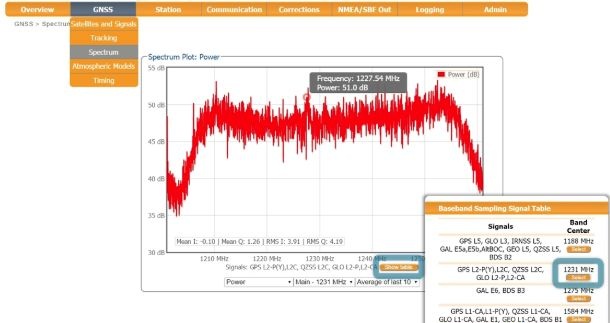
Image courtesy of @Septentrio
Figure 1 shows the L2 band with the GPS L2P signal marked at 1227.60 MHz. Use the Show table button to inspect the different bands — this is how you tell an interference problem from a geometry or multipath problem before you change any configuration.
Step 2 — Notch Out Narrowband Interference
Electronic equipment nearby can generate narrowband interference that affects part of the GNSS spectrum. To mitigate it, three notch filters can be configured in either automatic or manual mode. They effectively remove the narrowband portion of the RF spectrum around the interfering signal. The L2 band, open for amateur radio use, is especially exposed to this class of interference.
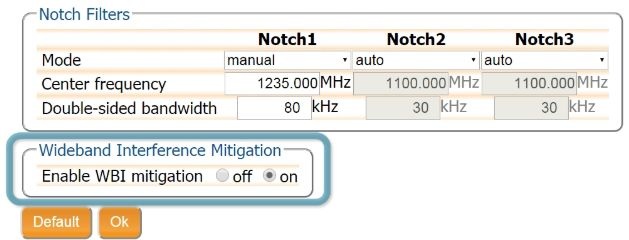
Image courtesy of @Septentrio
In the default automatic mode the receiver handles mitigation for the affected spectral region by itself. In manual mode you define the affected area by centre frequency and the bandwidth the notch filter effectively blanks — the example in Figure 4 sets Notch 1 to 1235.000 MHz with an 80 kHz double-sided bandwidth, alongside two automatic filters. Pressing OK applies the new settings immediately.
Step 3 — Enable WBI for Wideband and Pulsed Interference
Wideband interference is generated both unintentionally, by military, civil ranging and communication equipment, and deliberately, by devices such as signal jammers. The Wideband Interference Mitigation system reduces the effect of both on GNSS signals, and it also reduces the effect of pulsed interference more effectively than the pulse blanking traditionally used for that purpose. WBI is switched on with a single control in the same dialog.
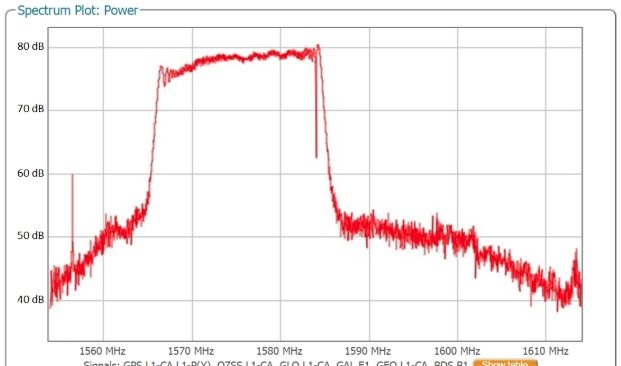
Image courtesy of @Septentrio
Figure 5 shows the L1 band with a jammer’s output added to the antenna signal — the raised block across the band is the interference. Figure 6 is the same environment with WBI enabled: the effect of the interference is markedly reduced.
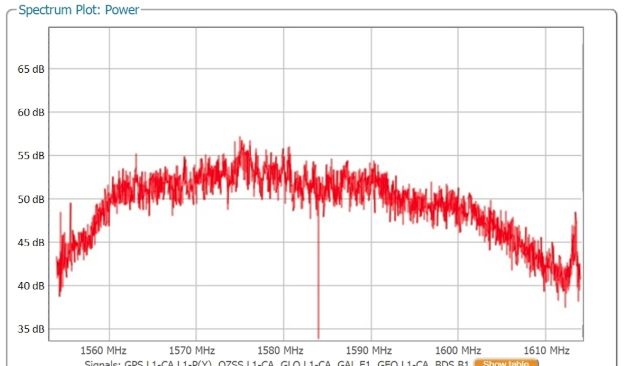
Image courtesy of @Septentrio
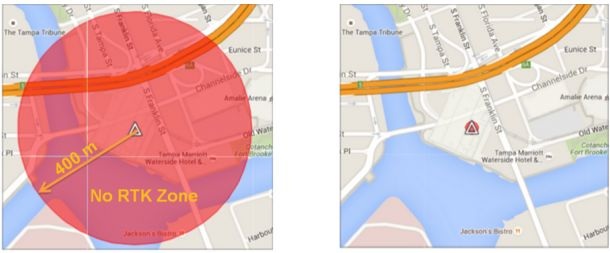
Image courtesy of @Septentrio
Matching the Symptom to the Mitigation
| What you see | Likely source | What to do |
|---|---|---|
| Narrow spike in one band; L2 or L5 worst affected | Nearby electronics, amateur radio transmission | Configure a notch filter by centre frequency and bandwidth |
| Broad raised band across a whole frequency range | Wideband jamming, ranging or comms equipment | Enable WBI |
| Short bursts that break tracking intermittently | Pulsed interference | Enable WBI (more effective than pulse blanking) |
| Position output moves without signal loss | Deliberate spoofing | Combine interference mitigation with measurement-level integrity checks |
What AIM+ Means for a Deployment
With AIM+ configured, interference detection and cancellation reduce downtime and keep operation safe: the receiver suppresses simple narrowband interference as well as complex wideband interference, blocking and spoofing, and an operator can analyse the spectrum through the output interface to judge the type of interference and where it is likely coming from. For a machine-control, port, robotics or mapping deployment, that is the difference between a receiver that reports a problem and one that simply performs badly for reasons nobody can name.
FAQ
Can I see GNSS interference without extra test equipment?
Yes. The receiver’s spectrum view plots the RF spectrum from baseband samples taken at the ADC output, and the signal strength table shows each band, so the receiver itself is the analyser.
How many notch filters are available?
Three, each independently configurable in automatic or manual mode. Manual mode takes a centre frequency and a double-sided bandwidth.
Does WBI also help with pulsed interference?
Yes — WBI reduces pulsed interference more effectively than the pulse blanking method traditionally used for it, in addition to wideband interference.
Can AIM+ stop spoofing?
AIM+ detects and cancels deliberate interference and provides protection against spoofing. Because a spoofed signal is not always distinguishable at the RF level alone, it should be paired with measurement-level integrity monitoring.
Is AIM+ configuration permanent?
Notch filters in automatic mode look after themselves. Manual filter settings and the WBI switch are applied when you select OK, so you can tune the configuration for a site and keep it.
Tell us where the receiver is going and what it is seeing — request a quote, contact the team, or review anti-jamming and anti-spoofing receivers.